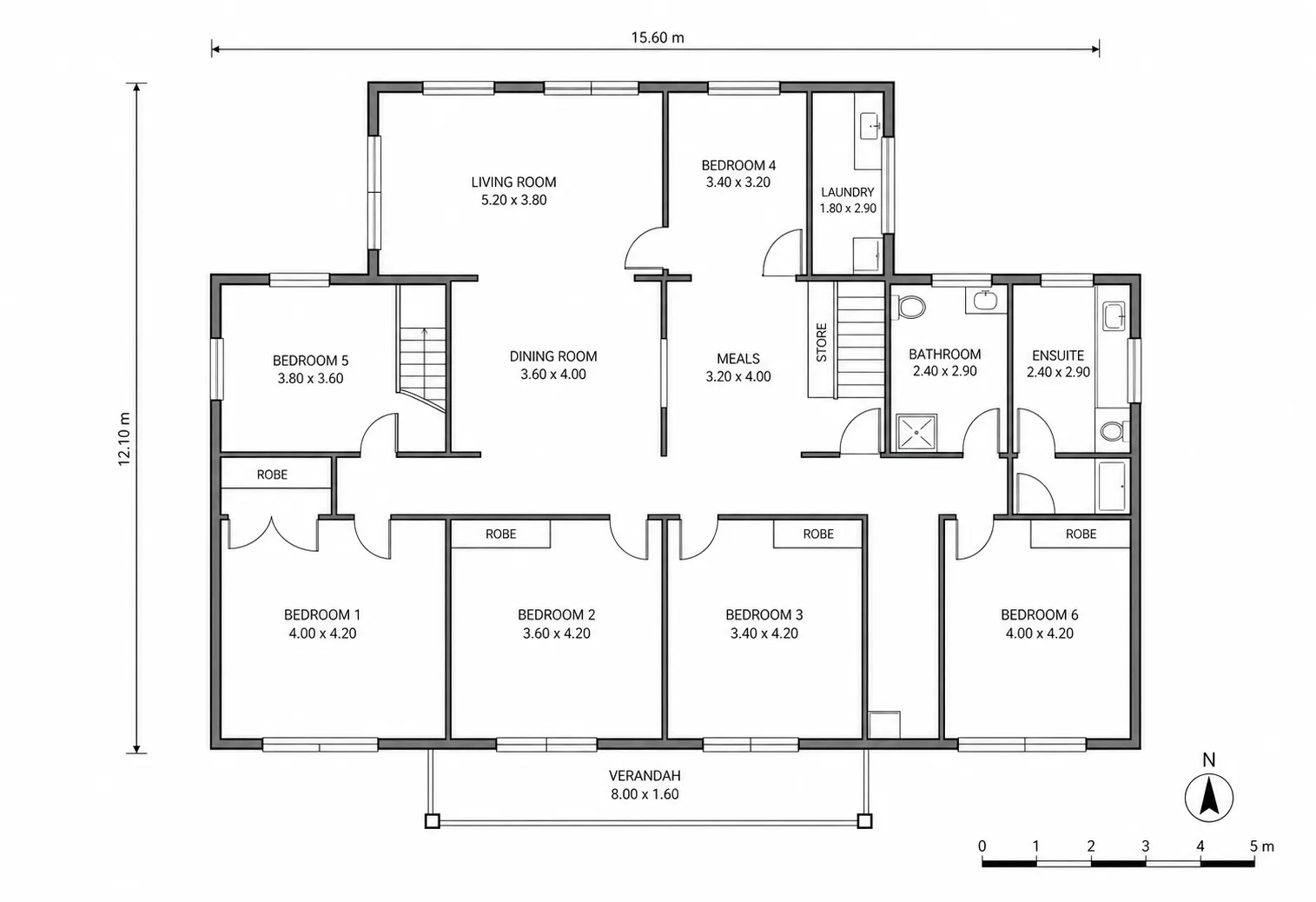
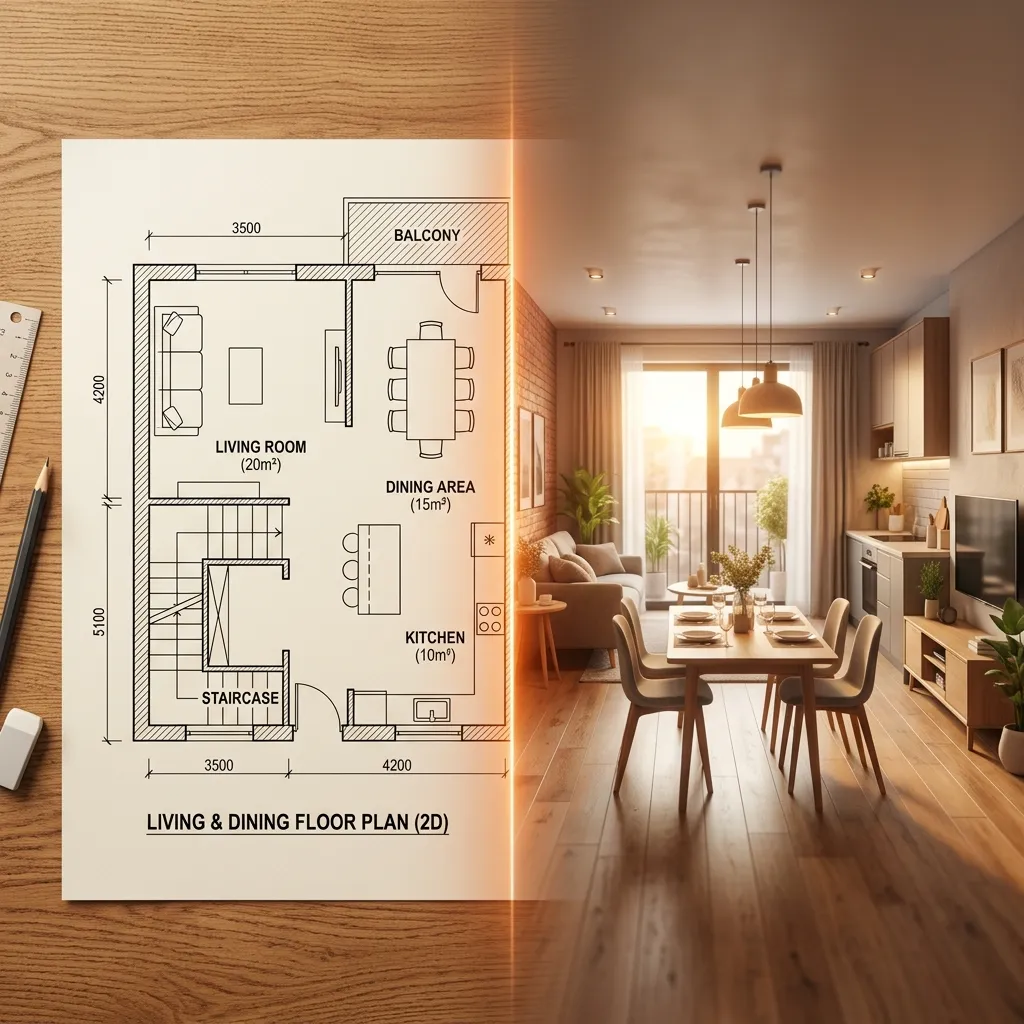
From a source layout to a presentation-ready 3D floor plan
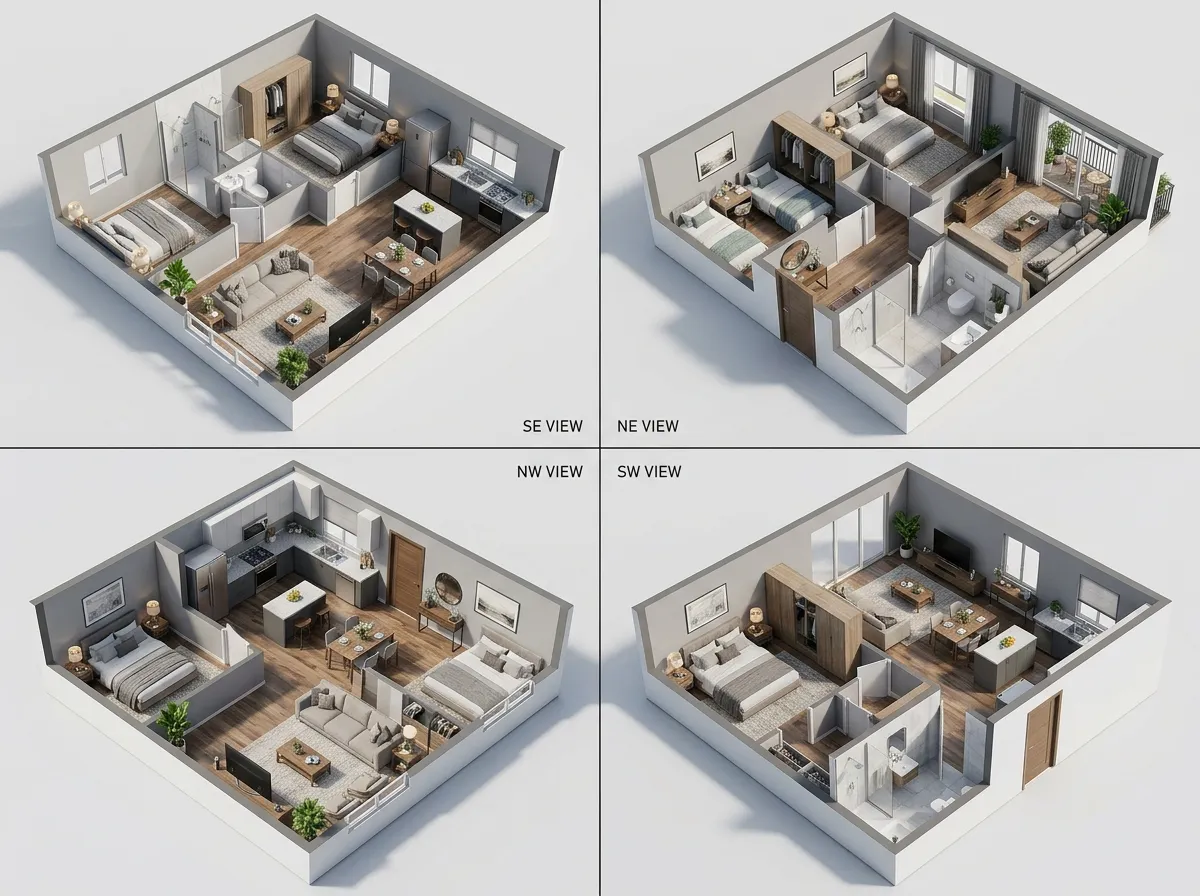
When viewers need to understand space, room relationships, furniture potential, and the overall layout at a glance, a 3D floor plan makes the existing plan easier to explain than a flat drawing alone.
Choose the 3D floor plan look for the audience
Pick a rendering direction that fits the result you need to show. A photorealistic visual can support property marketing, while a minimal or technical style keeps the focus on layout and spatial relationships.
- Photorealistic for property listings and client presentations
- Modern Interior and Minimal for concept discussions
- Technical Isometric for layout-first communication
Show the layout from the right 3D view
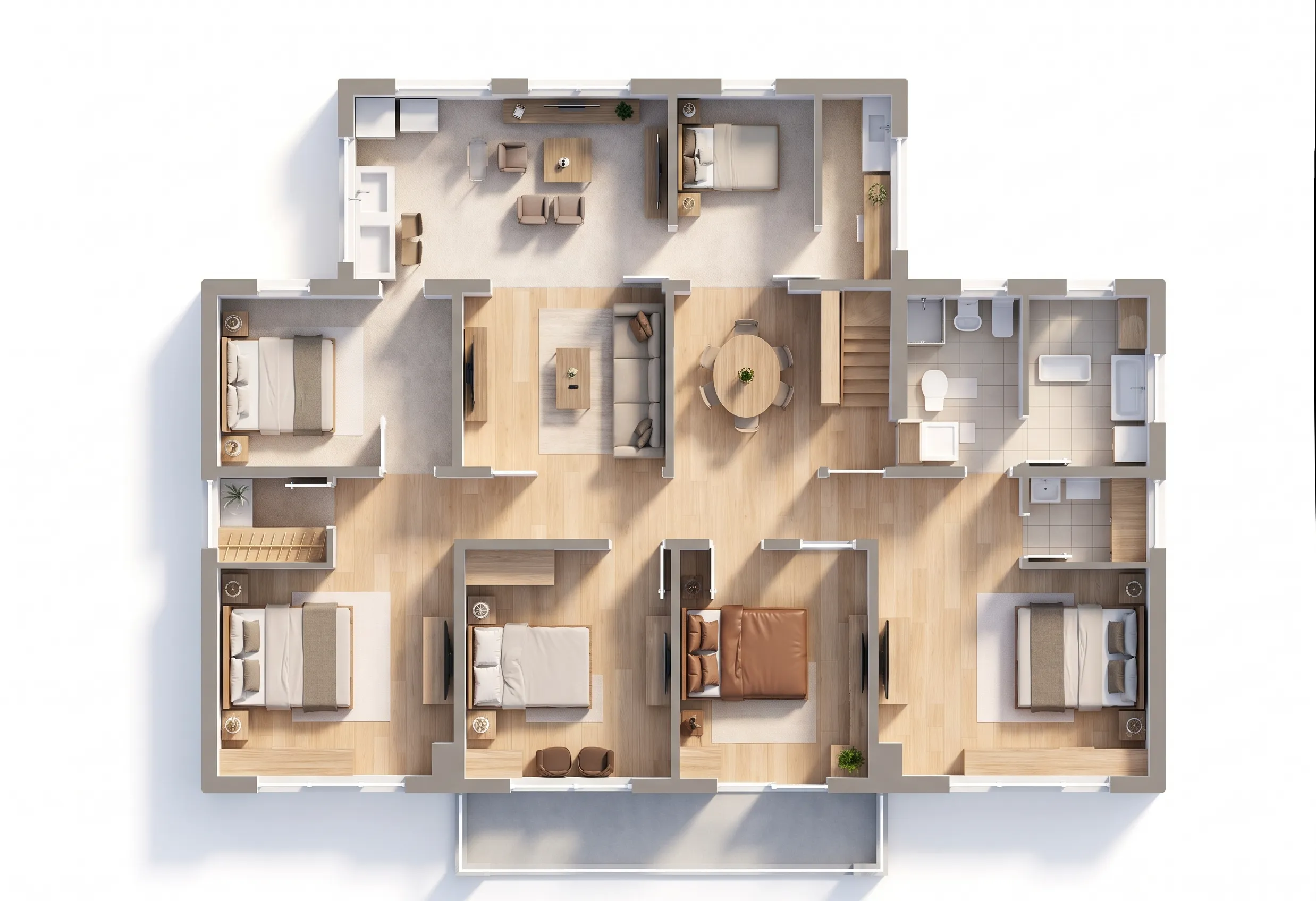
Choose the view that best explains the space. Top view gives a fast overview, Isometric adds depth, Aerial provides wider context, and Eye-Level works for an interior-focused visual.
- Top view for an immediate room-by-room overview
- Isometric for depth, furniture, and circulation
- Aerial or Eye-Level for broader or closer presentation needs
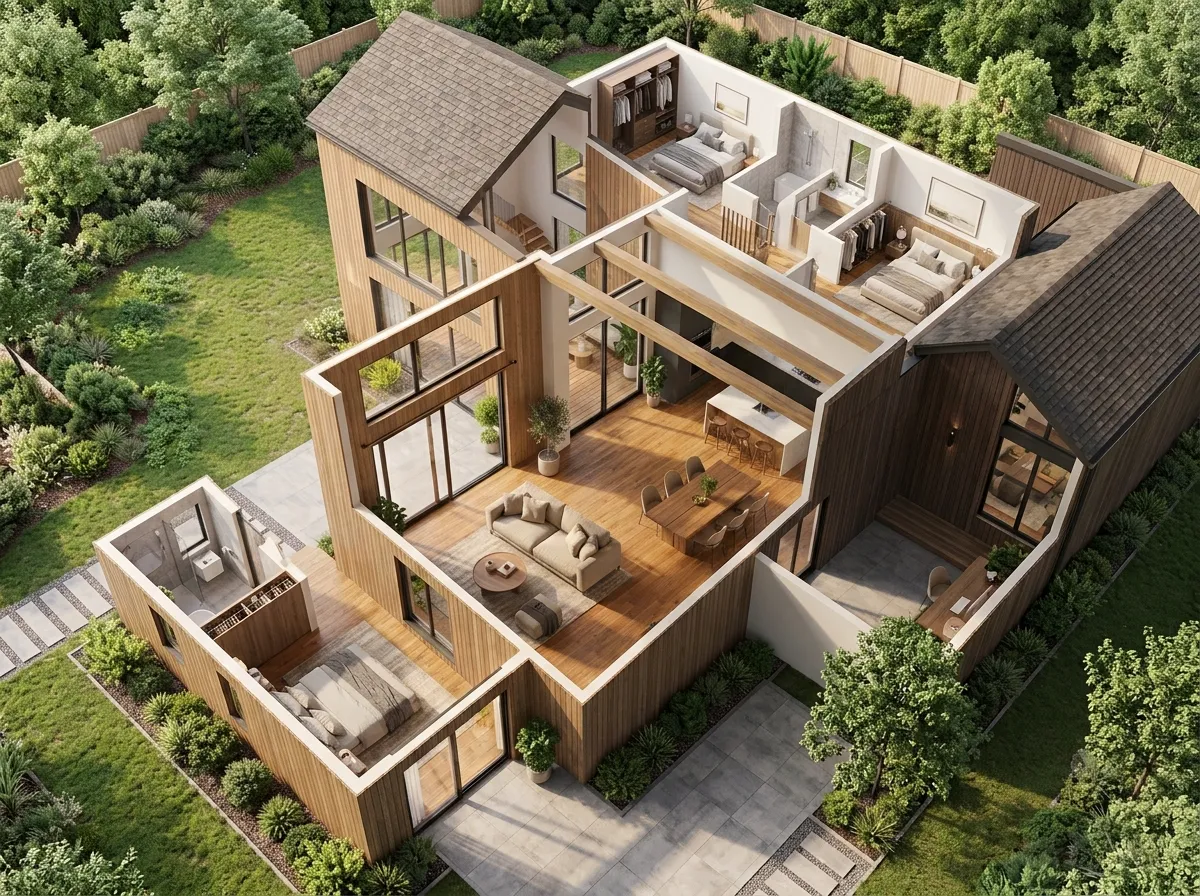
Set the visual context around the plan
Keep the plan isolated on white for a neutral visual, choose a soft background for presentations, or use Garden and Community settings when the wider property context helps explain the result.
- White for clean decks, listings, and comparison
- Soft neutral for concept boards and design discussions
- Garden or Community for property context
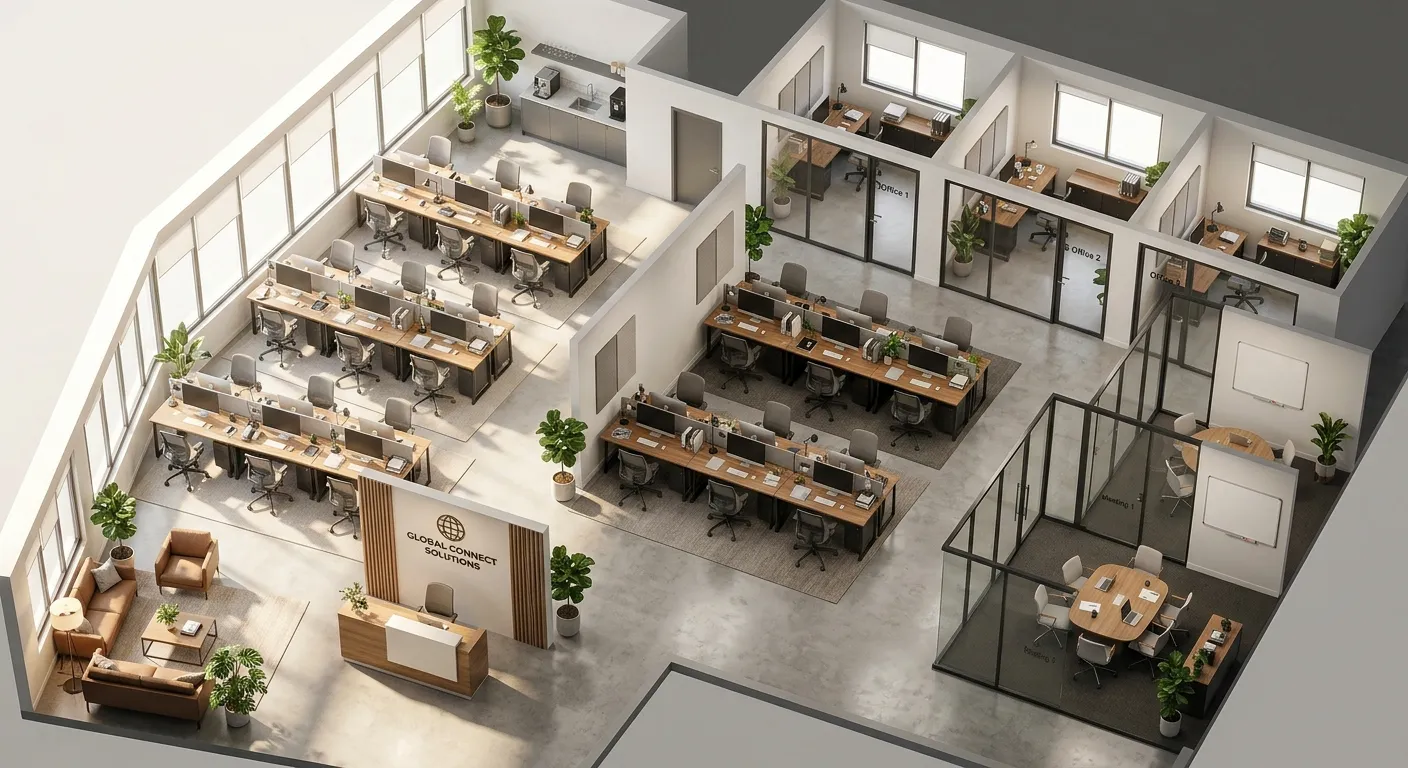
Set an output ratio for the channel you use
Leave the ratio on Auto for a source-aware result, or choose a familiar 4:3, 16:9, or 1:1 format to fit a listing, slide, social post, or design board.
- Auto for a source-aware presentation result
- 4:3 and 16:9 for decks and listing media
- 1:1 for compact visual sharing